Okta Integration
Supported Features
Waiter.com allows logging into the Waiter system using IDP or SP-initiated SSO flow.
Adding waiter to an okta account
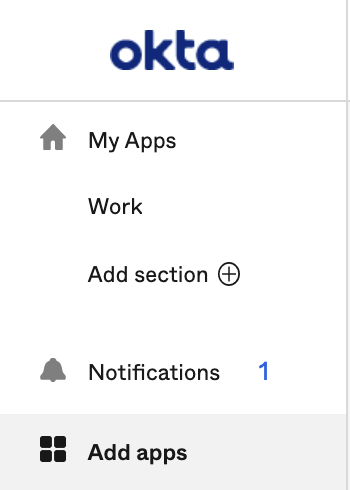
1. Log in to your account and go to Add apps.
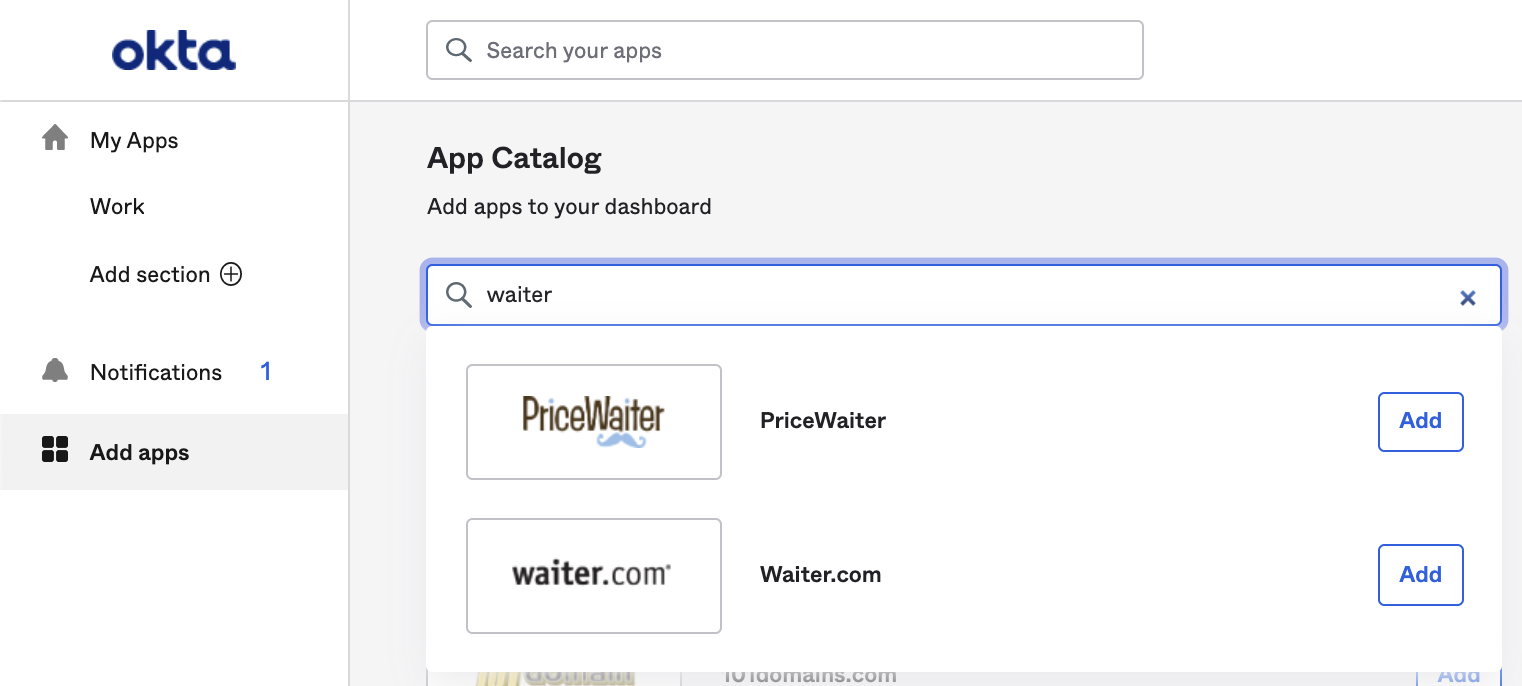
2. Search waiter and click on the Add button in the result list. This will add the waiter app to your dashboard.
Adding waiter to an okta organization
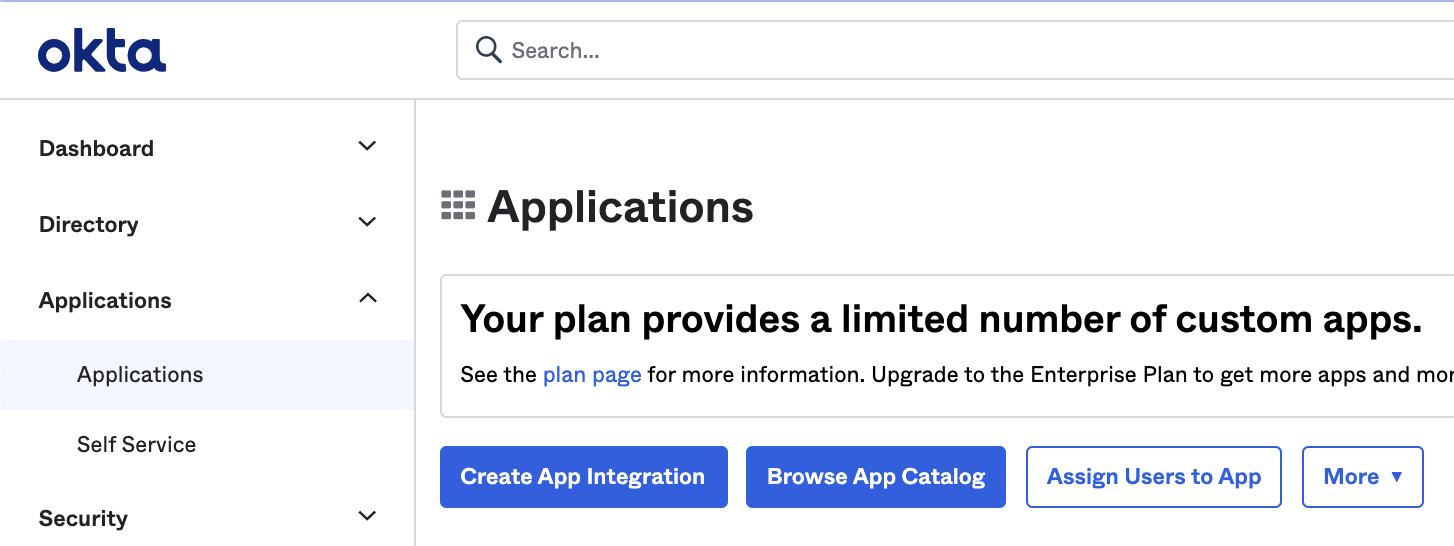
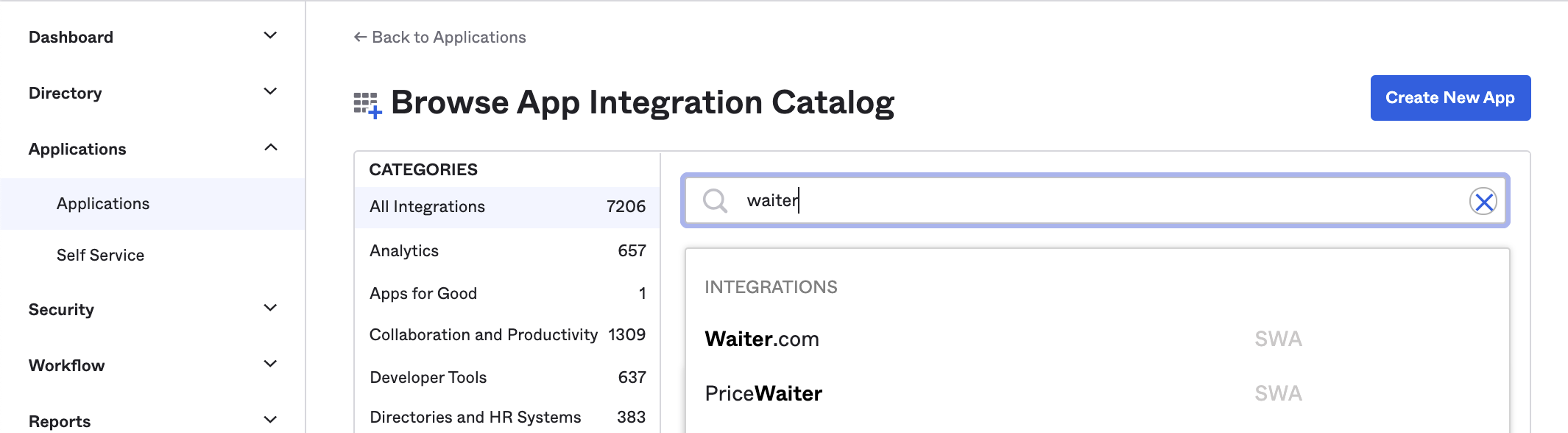
1. Log in to your organization, go to Applications and click Browse App Catalog.
2. Search waiter and click on the result.
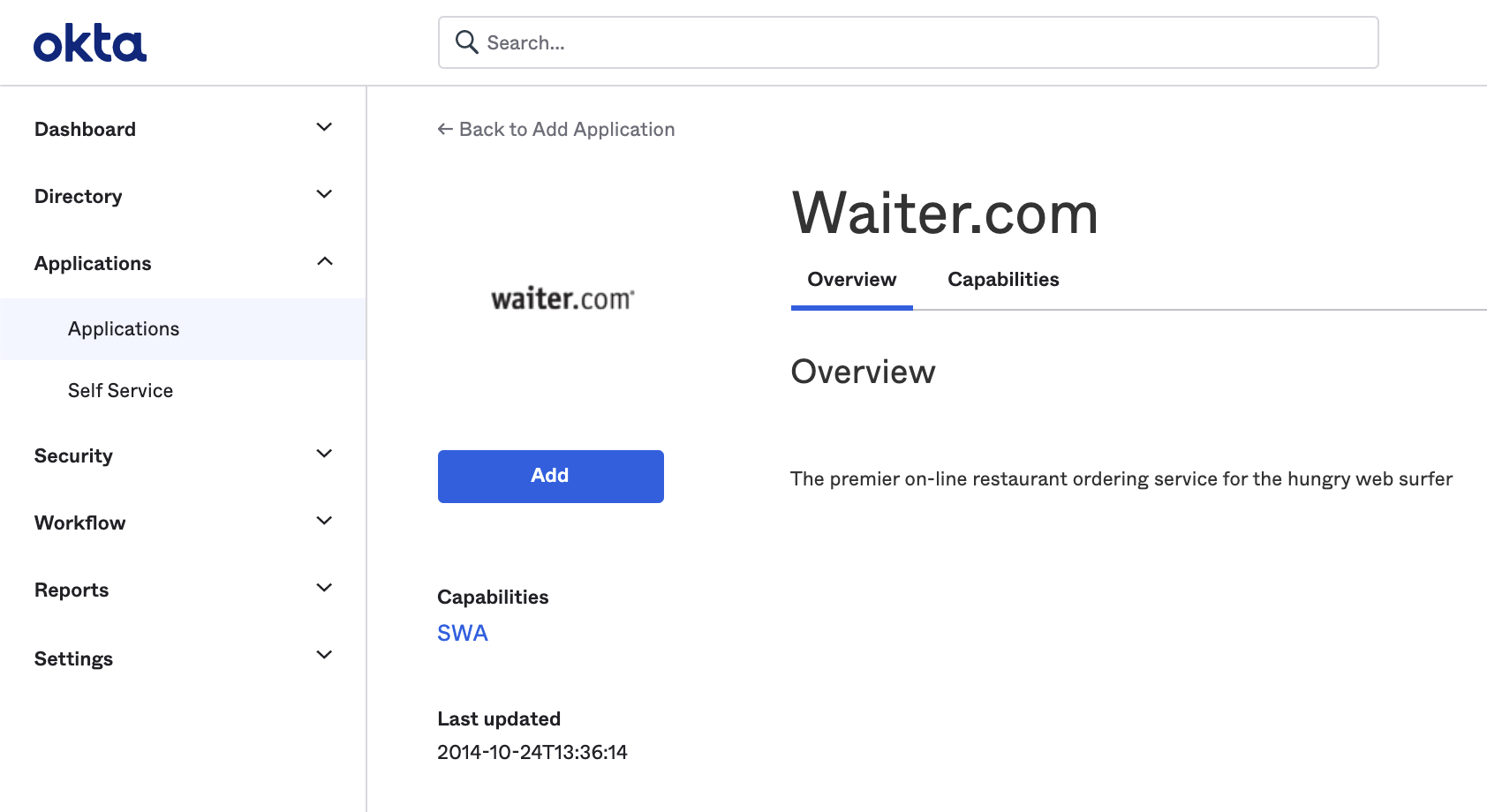
3. It will redirect you the app page. Click the Add button.
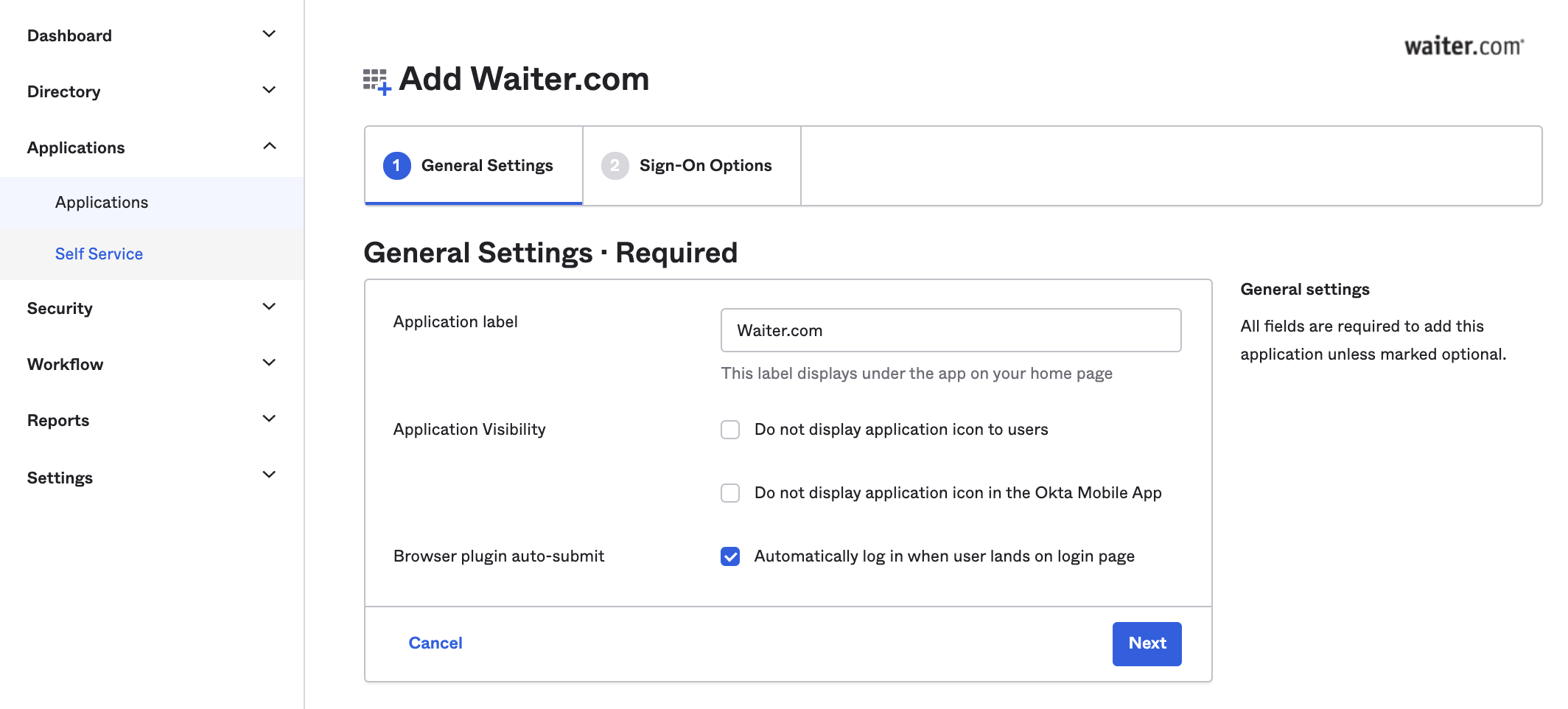
4. You can either use the default General Settings or configure it to your liking. Press Next to proceed.
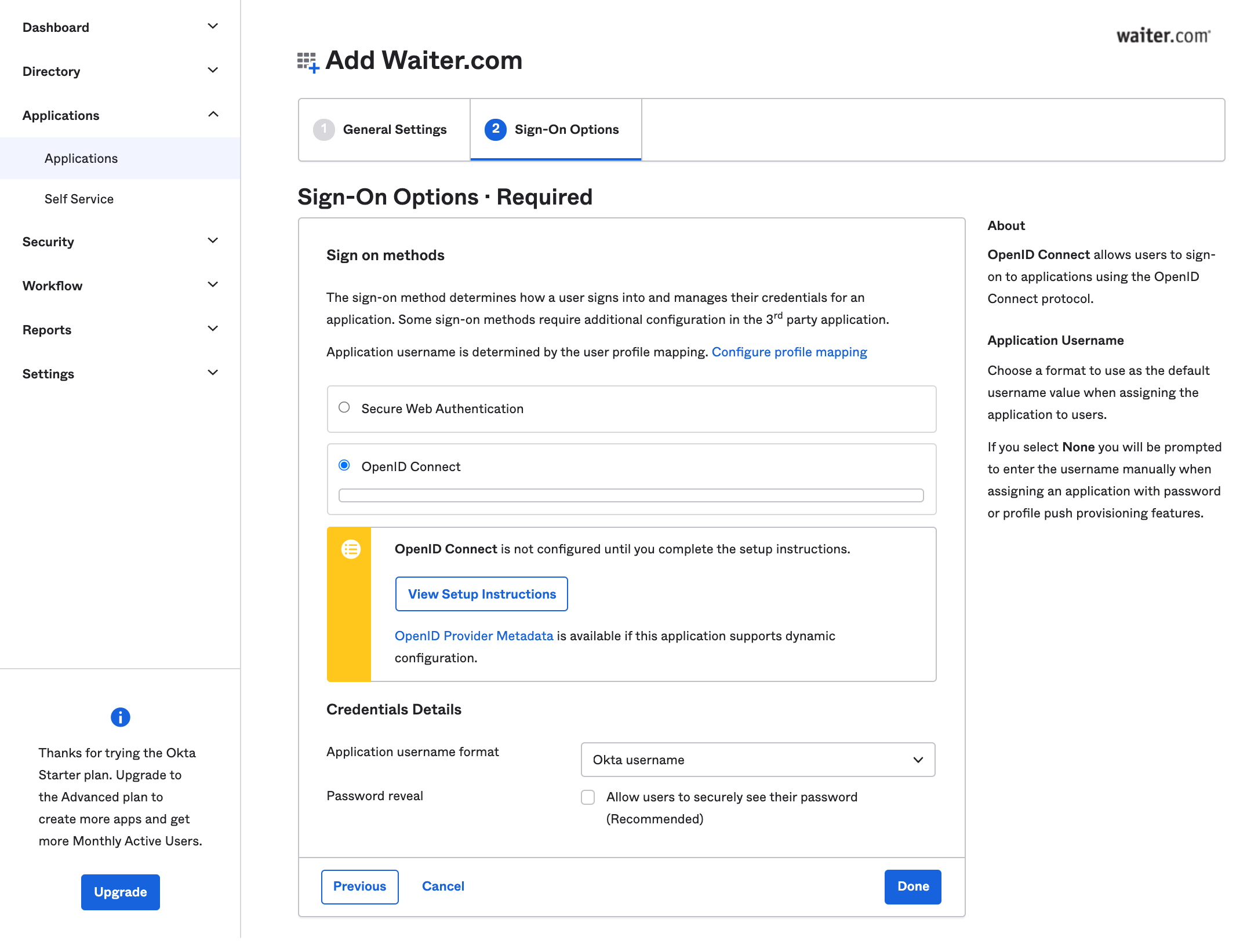
5. Make sure to check the OpenID Connect. Press Done to finish the setup.
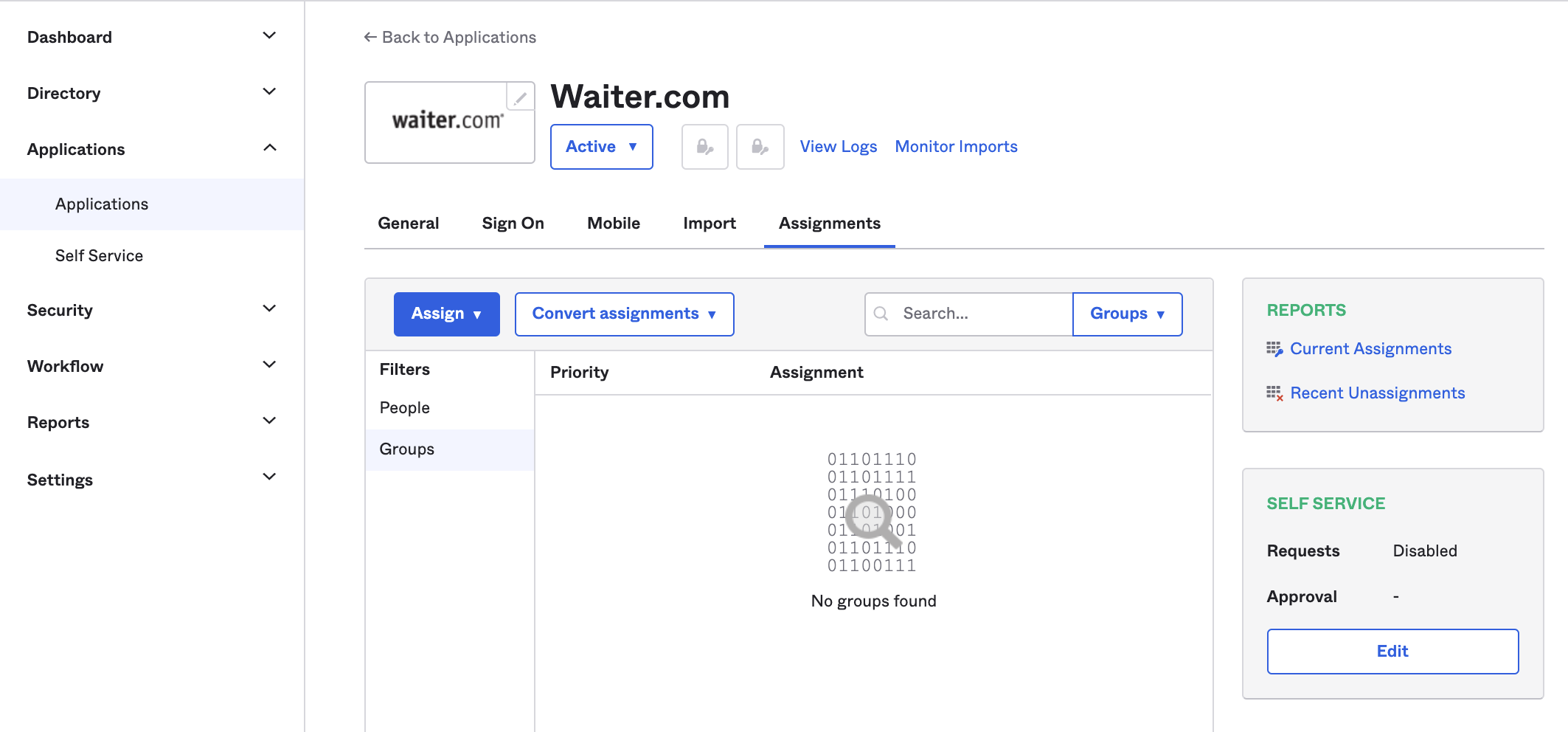
6. Assign the app to people/groups in your organization to give them access. The app would be added to their dashboard.
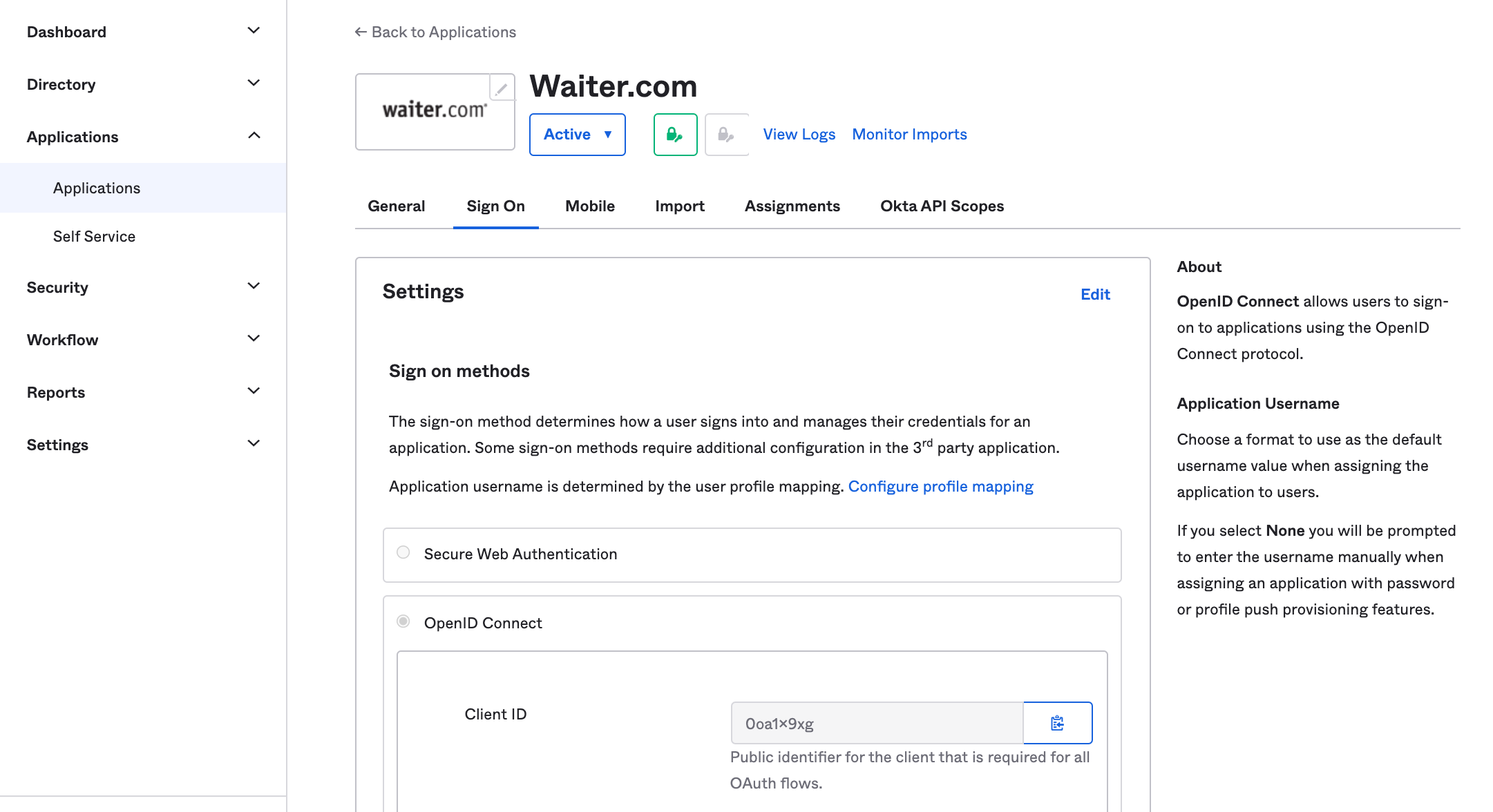
7. Copy the Client ID and Send us an email with the following template details.
Organization Name:
Okta Client Id:
Okta Organization Url (ex. https://myorganization.okta.com):
Logging in via waiter site
1. Navigate to the sign in page of Waiter.
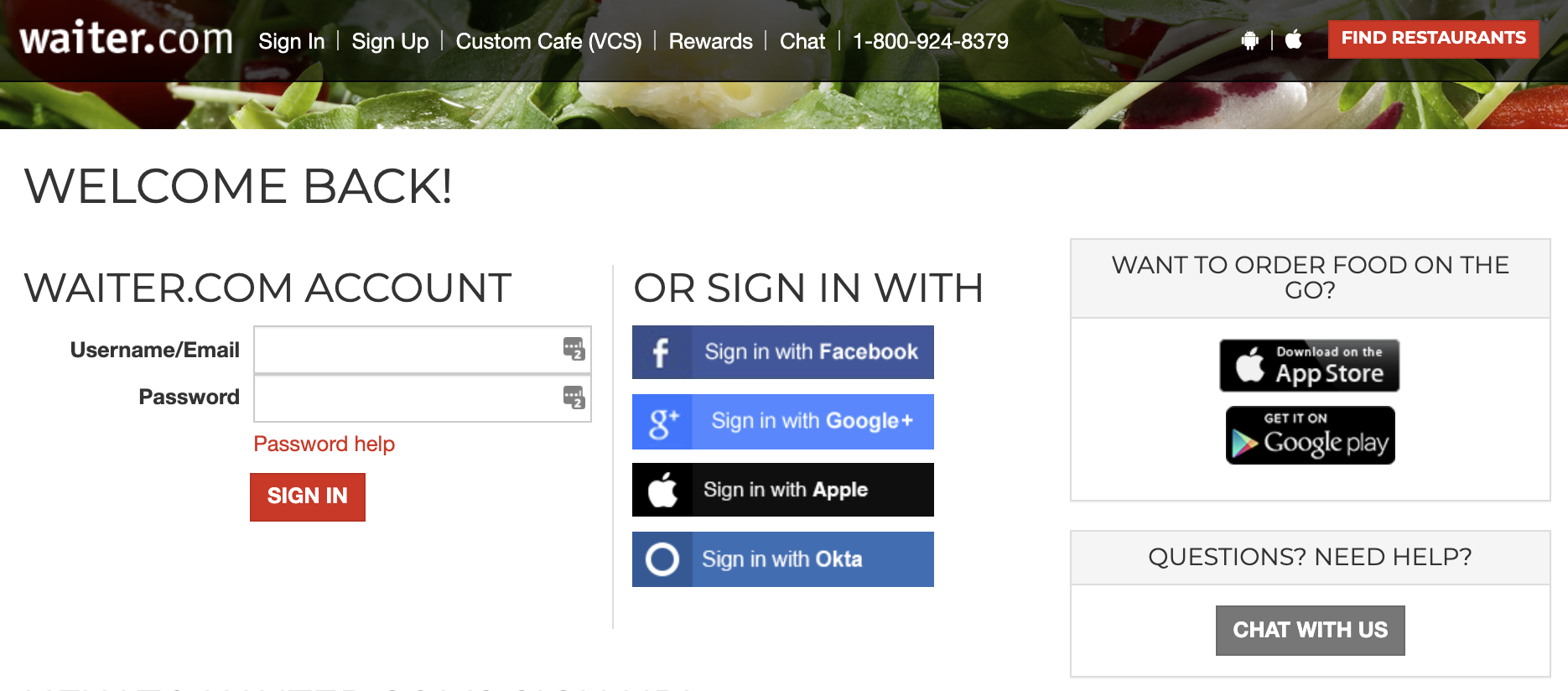
2. Click on Sign in with Okta and select your organization.
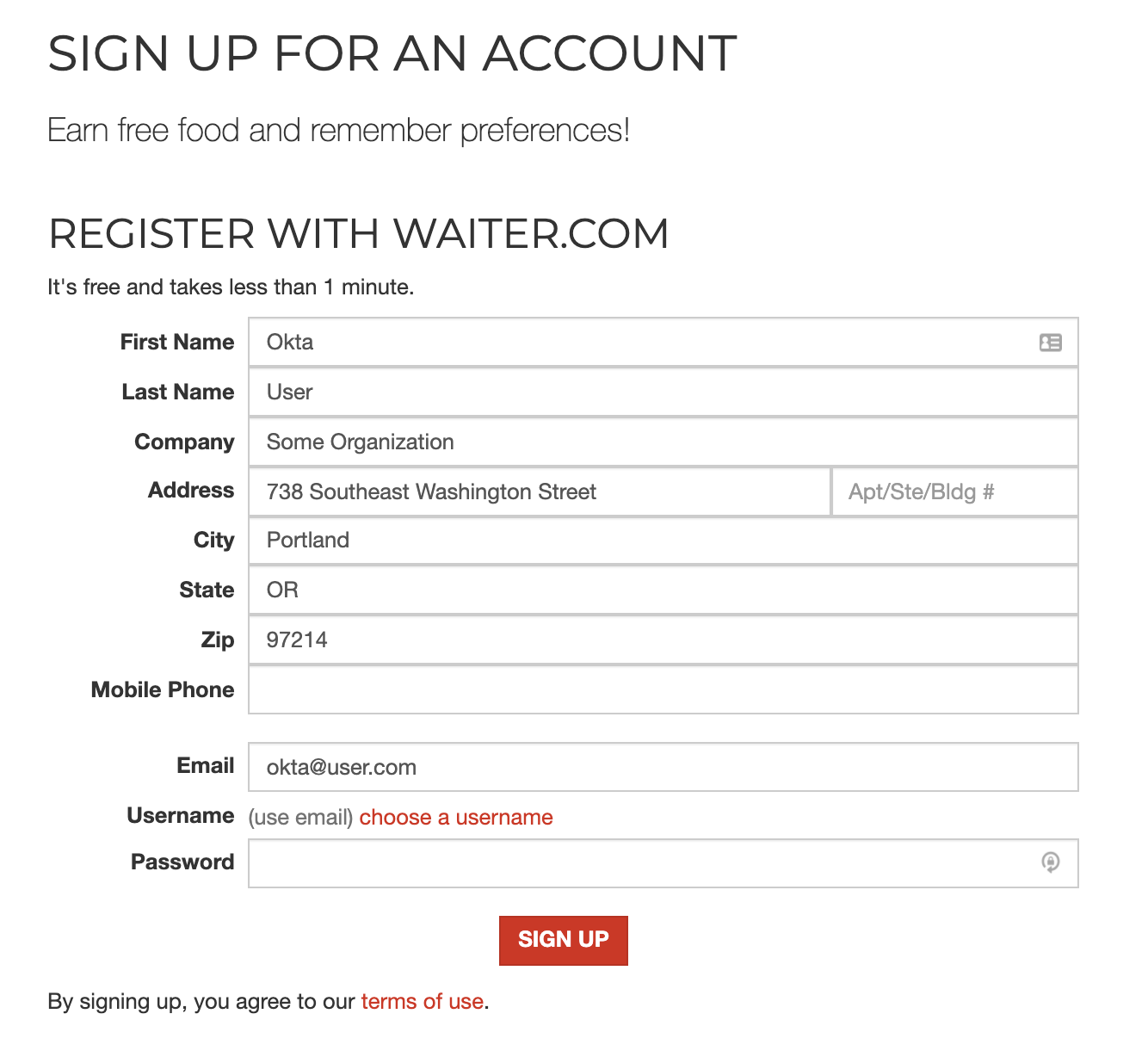
3.a. If you are a new waiter user, waiter will request you to create an account. It will auto-fill okta available information.
3.b. If your email is tied up to multiple accounts, you will have to connect to a specific account to continue.
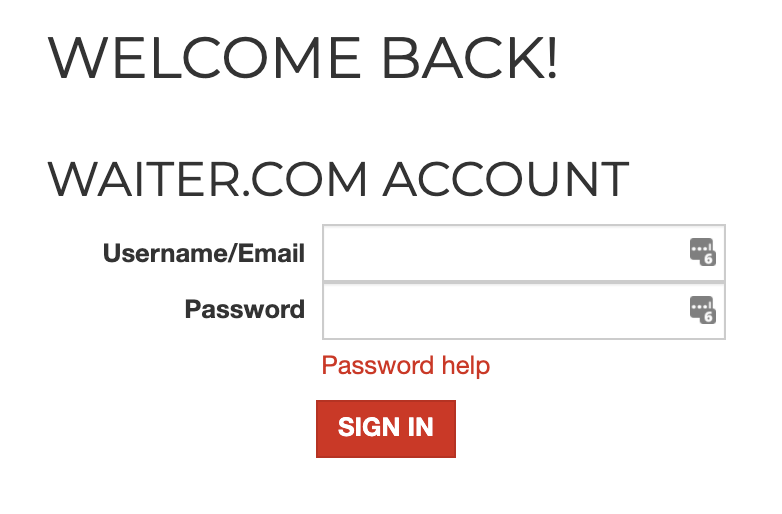
3.c. If you have already logged in to waiter via Okta, you will immediately be logged in.
Logging in to waiter via okta dashboard
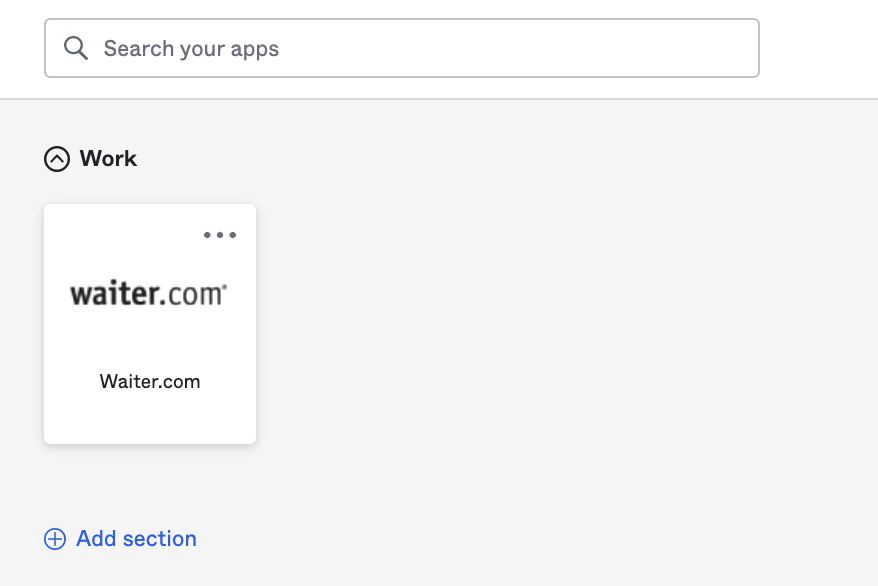
1. Log in to your okta account and click the waiter app on the dashboard.